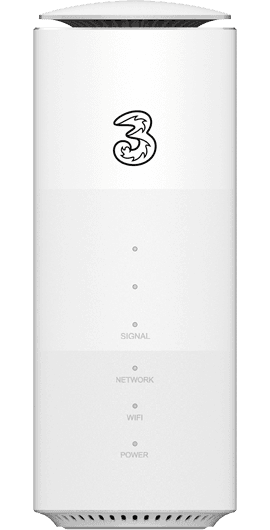
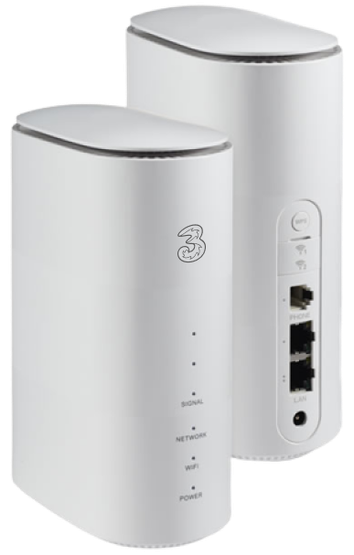
The ZTE MC801A supports Wi-Fi 6 access technology, allowing multiple users to access the 5G network at the same time. ZTE "Smart ANT" algorithm allows the MC801A to independently select better signals. The device enables consumers to enjoy the advantages of ultra-fast 5G networks and 5G services, including immersive streaming, gaming and entertainment experience through virtual reality, augmented reality and 3D technologies.
Underpinned by its high speed, low latency, wide coverage and accessibility, this device not only brings the ultimate user experience to the traditional mobile broadband field, but also accelerates the application of 5G technologies in the fields of the Internet of Vehicles, smart grid, intelligent manufacturing, and the Internet of Things (IoT).
ZTE MC801A 5G Hub
Click to download the ZTE MC801A 5G Hub user guide.
How to get the best connection: Here are some tips on how to get the best connection from your ZTE Hub
- Place it near a window.
- Minimise interference from microwaves, wireless speakers, baby monitors, and other Bluetooth devices.
- Keep an eye on how many devices are connected at one time. Too many might reduce the overall speed.
Accessing the ZTE dashboard: This is one of the differences for broadband users that have upgraded from a Huawei. The Dashboard/Device Management website has a different URL: http://192.168.0.1/index.html#login. You will find your unique dashboard password on the bottom of the Hub. Launch the dashboard from any device connected to the Hub, enter the URL and password, then select 'login'. There are two views of the dashboard via your MOBILE and your PC/LAPTOP. You can toggle to PC view on your mobile, but it’s all down to personal preference
Why do you need access to the dashboard? Because of all the fabulous features, of course! Below are just a few
- Change the name of the Hub from Three_ZTE to something of your own choosing.
- Change the Wi-Fi password, just because you want to, or when you have forgotten it.
- Access the Parental control panel, where you can add a “Kids device” and set time limits.
- Check for device updates under Advanced Settings - Update - Check.
- Perform a self-diagnostic test.
- Check your data usage, but you do have to enable your plan allowance. My3 will show your data usage in relation to your billing cycle.
- See any SMS sent to your device, such as Three+ notifications or credit limit alerts.
- Access the suggested position feature for assistance in achieving your strongest signals!
Need support with this device? Check out our Device Support Guide for troubleshooting steps