How to set up a scheduled top up on My3
Desktop (three.ie)
- Log into your My3 account
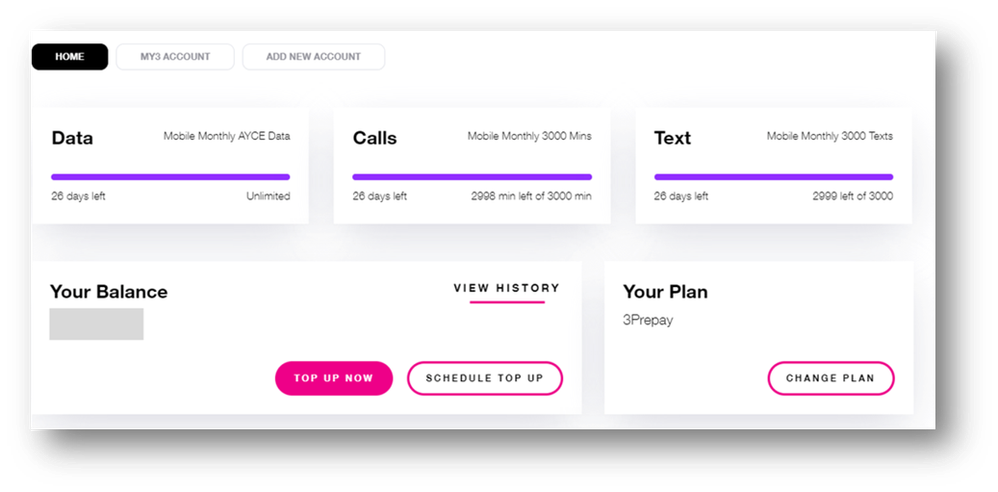
- On your dashboard click ‘SCHEDULE TOP UP’
- Select the ‘Scheduled Top Ups’ tab
- Click 'Schedule New Top Up'
- Add who you’d like to top up – you have to option to schedule a top up for another number here
- Select the amount you’d like to top up
- Select the date you wish your scheduled top ups to begin. Your top up will be scheduled for the selected date and will repeat every 28 days from then.
My3 App
- Log into your My3 App
- Select ‘Top Up’ from the bottom of the page
- Select the ‘Scheduled Top Ups’ tab
- Click 'Schedule New Top Up'
- Add who you’d like to top up – you have to option to schedule a top up for another number here
- Select the amount you’d like to top up
- Select the date you wish your scheduled top ups to begin. Your top up will be scheduled for the selected date and will repeat every 28 days from then.

Are you having trouble setting up your Scheduled Top-Up?
If you are using Apple Pay or Google Pay, click here to read our blog about it.
If this is your first time setting up a scheduled top-up using your credit or debit card and you receive an error message, you will need to top-up at least once via your My3 account. To top-up, follow the steps below:
- Log in to your My3 account.
- From the dashboard, go to "TOP UP NOW".
- Enter your details and click "Continue" (when you are entering your address, do not enter it all into the same field).
- Choose "Instant Top-Up" and perform a manual initial top-up. At this point, please note that you will need to use the same card that you had previously used on the automated system via 1913.
- If that top-up is successful, you will then be able to set a scheduled top-up using that same card.
How to update your card details
When you receive a new debit or credit card, you will need to update the details on My3 to ensure that your scheduled top-up isn’t interrupted.
- Login to your My3 via the website only.
- Click on the "Top Up Now" button (this is coloured in pink).
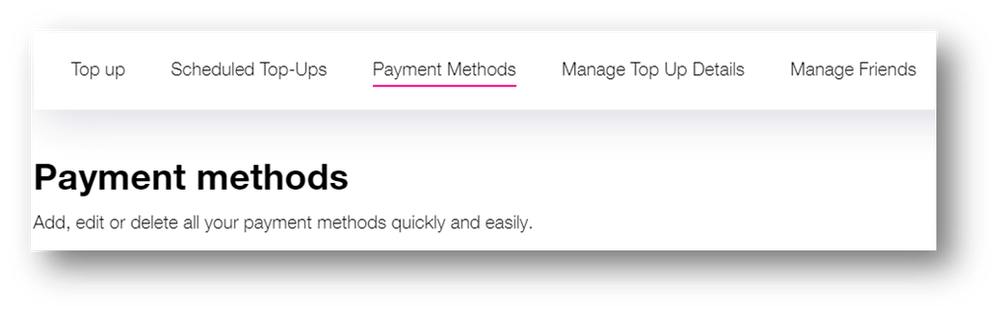
- From the tabs (see image below) select "Payment Methods".
- Select “edit” next to the card that you want to update.
- Update the expiry date and the CCV number.
- Click "Save".
Click here to read our guide to topping up.