Adding Emergency Info to Your Phone
The one thing that we can’t leave the house without these days is our smartphone, so it only makes sense to have your emergency contact information on your phone!
The easiest way to do this is by adding it to your phone's locked screen. This means that if it gets lost or misplaced, your contact details are available to assist in getting it back to you.
How do I do this?
iPhone
To access emergency info on an iPhone, you need to set up a Medical ID, and you do this in the Health app.
- Open the ‘Health’ app and tap Medical ID > Edit.
- Enter any important medical info (such as birthday, blood type, allergies, and so on), as well as emergency contact info.
- Turn on ‘Show When Locked’.
- Tap ‘Done’ when you are finished.
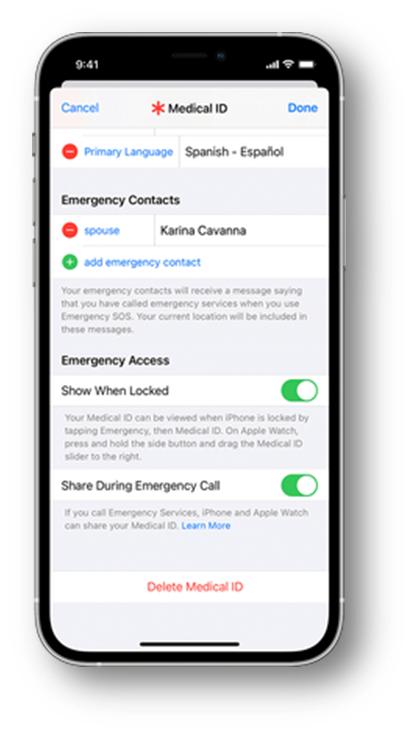
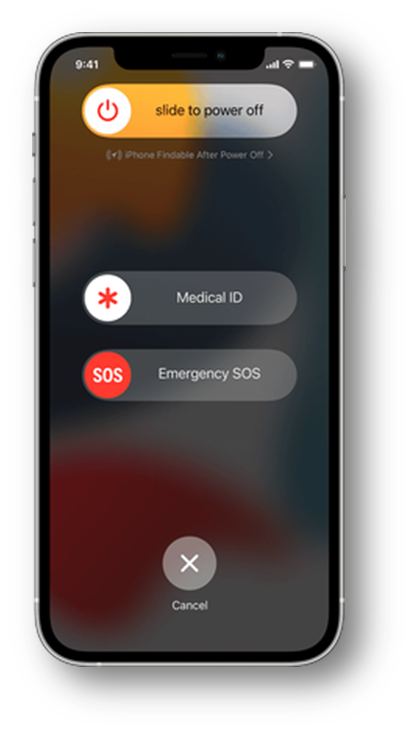
Your Medical ID will now be accessible from the lock screen by going to ‘Emergency’, then ‘Medical ID’. It is also possible to call emergency services from this screen.
For more info on Medical ID, check out support.apple.com.
Android
There are a couple of ways for Android users to add emergency info to their phones. The first way is to add a message to your lock screen. This can be done by following the below steps:
- Open the Settings app on your Samsung phone.
- Scroll down and tap on Safety and emergency.
- Tap on Emergency contacts.
- To add a new contact, tap Add member and select a contact from your list.
- To change an existing contact, tap on the contact you wish to change. You can then remove the old one or replace it with a new one.
- Tap Done or Save to confirm your changes.
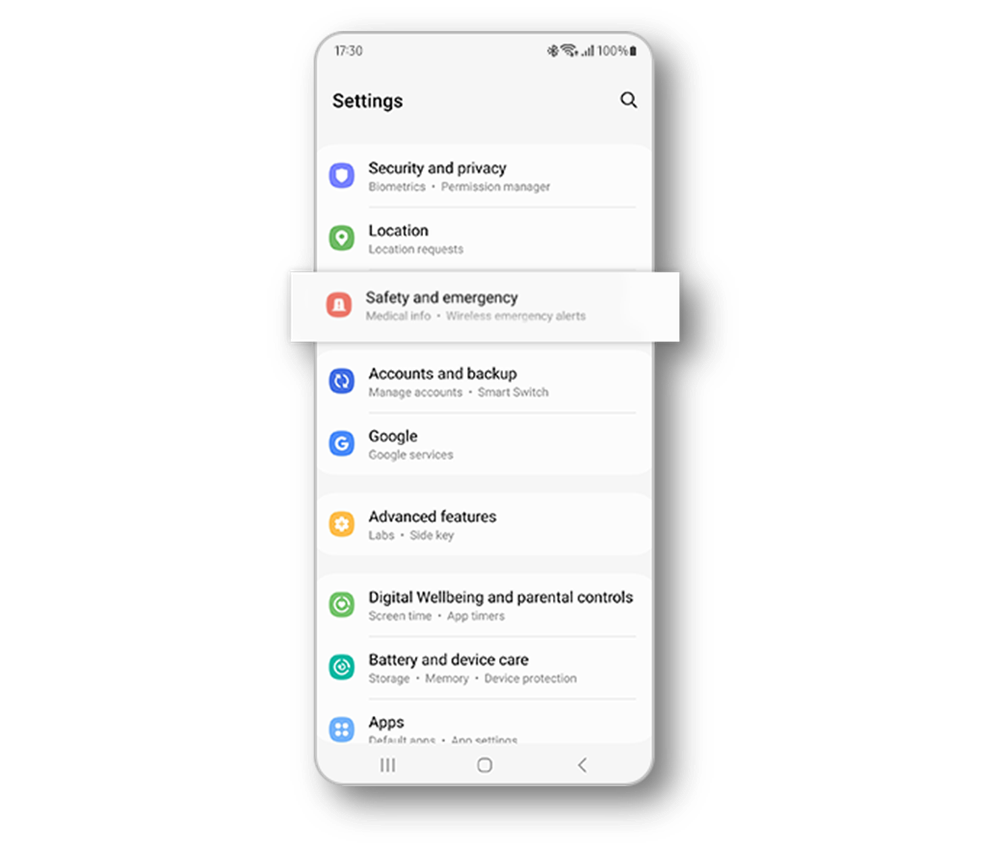
Otherwise, if you would prefer, Android users can download an app such as ICE – In Case of Emergency from the Google Play Store. This will create a visible widget on your lock screen containing all of the necessary emergency information.
Have a handy phone tip you want to share? Leave a comment below!